Showing posts with label google. Show all posts

Wednesday, August 8, 2018

Gmail’s biggest Interface redesign

Gmail’s biggest Interface redesign

         The world’s most popular email service is googles mail, that is gmail.com.Google email snoozing, nudging, and confidential mode making their  visual redesign for Gmail on the web. 
  • Integrated rights management
  • Two-factor authentication 
  • confidential mode
  • Email snoozing
  • Attachment showing

The view of gmail is totally changed.. here there are 3 types of view is available .. in that Default , Comfortable and finally compact. these all are fully updated features. in the default you have the attachment of the mail is out side of the mail and you can direct access are open the file which is attached 
the old look was comfortable and compact .. these are old styles.


and the finally the gmail look like 


Wednesday, September 27, 2017

Facebook Durga Puja mahotsav

Durga Puja mahotsav


Celebrations of Dussehra. Today the Durgamaataji ka Puja mahotsav started. from this day to 4 days it is the biggest festival like a bloom in the sky fire. enjoy the festival. Facebook Giving the Share Post of Durgamaata Puja. You can also share the animated share post from the below link   

just click on the below link and it will open my post of Puja Post you just click on that and click on share button. that is it.

This is My Post 
Just tap on my post, it was open my post and just tap on share. 

Happy Dussehra.....
Thank you 

Google's 19th Birthday Surprise Spinner


Google's 19th Birthday Surprise Spinner 


Celebrations of Google's 19th Birthday. Google giving a surprise spinner for all. This spinner going to give some knowledge to you and have some games also you can play in the both devices either PC or Mobile. just you need to click the google doodle it will automatically open spinner page. and its spins directly and opt a symbol and going to open that option or spin again. 

Just click on the Add Peace Profile Frame. it will show the preview. After that just clik on ok then it will directly set the profile picture with the frame. Want to write something you can write in your post... 
 I am giving the link of Google Spinner just click below link and open the spinner and know something new.

Google spinner 
Just tap on my post, it was open Google spinner. 

.....Happy Google Anniversary.....
Thank you 

Monday, August 14, 2017

Monday, May 8, 2017

New tools to shape Comments in Youtube

New tools to shape Comments in YouTube
1)                    Pinned comments: Show the Popular comment in the 1st to promote the
          comment section. This comment will help to you to  attract others
2)                   Creator hearts (Love Symbol) : Show the some heart lovable comments.
          This is the better way to comments from your community
3)                   Creator usernames: when you comment on your channel or video
          comments, your username will appear under the text with a pop of color
          around it so your viewers can easily identify the that comment is coming
           from you. If you are a verified creator, you will still have a verification
          checkmark appear beside your name.
4)                  Choose moderators: This feature is enabled in this year. This is the best
           way to maintain comments section . give permission to others called
            moderation they can maintain comments like remove the others spam
            comments
5)                   Blacklist phrases and words: You can block some words which is not
           proffered. The some words are very bad words or any violence words. These
           words fully blocked. You can block those words in the black list
6)                  Review of Hold potentially inappropriate comments:  This is
            introduced in this year. This is now in developing mode (Beta feature). If it
            is successful then it’s going to introduce in the all users
. It is  recognize  the
            algorithms will not always be accurate: the beta feature may hold some
            comments you deem fine for approval, or may not catch comments you did
            like to hold and remove. When you review comments, the system will take
            that feedback from account to into the account and get best at identifying
            the comments hold for review

Saturday, April 29, 2017

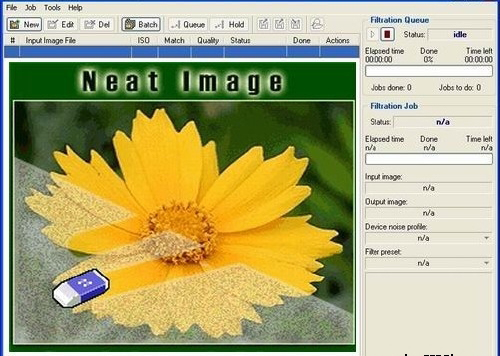
Neat Image Plugin For Photoshop

Neat Image Plugin For Photoshop 
           Neat image plugin for Photoshop all versions. It’s very simple to clean your photos from Noise. Reduce Noise using the Neat image Plugin, and it is very simple to install it just install setup file and choose whatever maybe your Photoshop. The download link is given below:
 Download Here
Neat image plugin for Photoshop all versions. It’s very simple to clean your photos from Noise. Reduce Noise using the Neat image Plugin, and it is very simple to install it just install setup file and choose whatever maybe your Photoshop
To install Neat Image plugin manually
Traditional Method:
            Go to the C:\Program Files\Neat Image\ and Copy the NeatImage.8bf and go to c:\Programfiles\Adobe\ Photoshop (whatever you’re using)\plugins and paste here. Then open your Photoshop and go to filter menu you can find it at last.

Method 2:
                    Open Your Photoshop, go to the Edit menu, and open Preferences >> Plug-ins and Scratch Disks and set Additional Plug-ins Directory to typically, C:\Program Files\Neat Image\. Then open Photoshop and you can find it in filter menu.

Google Roll Out New Sign in Looks in GMAIL

Google Roll Out New Sign in Looks in GMAIL 

Google launches New Login (Sign in) and Sign Up Look in the Gmail. This type of login used for all the applications (products) of the Google. 
when you enter into the gmail login page The google logo will show the small animation which will tell us to this login for all products of google. like it will show the application and converted in to google logo. This type of login simple look with the white forms. the first form is Enter your Email or Phone number then press enter or click on next button. then you should have to enter your password in the password form. that's it it will login into your account. 


This login have fully security features.and this login is very fasted and easier for all devices . this changes will easier to every one. This changes was improved since one month and finally we got the new of the google sign in. and if you want to login into your account with the new looks just use below link 


 This is the image showing that the gmail was previewed with previously logged person after logout its will ask like this if you are the same person just enter password go forword if your not just clik on ^ button and use another account . and if you have any trouble in sign in of your account just click on other options in the bottom of the page and solve your problem. This is very help full for android users 

Thank you Google
-Karnakar

Friday, March 31, 2017

Facebook Background Color Posting now available in PC

Facebook Background Color Posting now available in PC
Background colored post was released on 01-01-2017 but that days its only available in mobile phones only, But now this feature introduced in Facebook Web for PC also .. Now its a new way to post status with attraction of people, But it's only for status but not taken photos or videos carry with this.
Facebook Colors
 Facebook is rolling out this feature Computer users also. To try this one, just click the box that says "What's on your mind?" to post or share something to your news feed, there You will see background color option click on it now you can see different color options appear below your text; now just choose or select a color to add it as your background.

Saturday, March 11, 2017

10 Cool Features Google’s Gboard keyboard in Android

10 Cool Features Google’s Gboard keyboard in Android


           Day to Day Google updating their own keyboard for Android, in the past the google keyboard name is Google Keyboard but now google changes its name and style and performance. Google Keyboard is now GBoard and it’s awesome. It is now packed with the full of useful features. they are Swype (Glide) typing, Search Engine, Themes and emoji’s . It’s the best Built in keyboard in the Android Devices.
You can download Gboard from the below link 

1. You can Swipe (glide) type the words
It is too difficult to type the large data by the tap the letter on the keyboard and it’s too too difficult  when you only have one hand free. - But with Gboard, you can swipe to type easily.
      If you have perfectly used glide typing called swipe in the past. You simply glide your finger over the keys you to type word which you need, and Gboard will identify the wanted word and insert it. It is much faster than tapping type with the single tapping, and you will have surprised with the accuracy of the words.

2. The space bar is now a trackpad for cursor
               Gboard, you can simply move the cursor back and forth with the swipe of the space bar, which means you get a useful trackpad that will help to you to move the cursor between text. Simple swipe on the space bar.


3.  Search from The Keyboard
       This is the awesome feature and great feature of the Gboard i.e., if you booked a Movie Ticket at a theater, but your friends do not know the address of it. So Usually, you would open your browser, search for the Theater, find the address, then copy and paste it into a text and send it to your friends.


But it’s very very easy with Gboard, Google Search is built in — During the conversation, simply tap the Google icon button, then type in your search, tap a result, and the information is automatically pasted into your message.  And send it. You can also search for GIFs and YouTube videos to share your friends.

4. Search for Emoji’s from Keyboard
In the middle of conversation there’s an emoji that is perfect for the moment of Your conversation. but it is time waste to select that emoji from the hundreds of emoji’s, that’s way With Gboard, you can just search for it. And send it. Simply Tap the emoji button, then the search emoji which is you need like type things like “happy,” “pig,” “crazy” and “flag” to see all relevant emoji characters in an instant.

5. Translate Language in Real time


If you have a friend that speaks another language. But you don’t know that language, then what ? do not worry its very simple to translate your language to another language in the real time by using of Gboard. Tap the Google icon and tap on the Translate icon (showed in the below image).


6. One-handed Keyboard
Want to type when you have one hand free available to type? You can put Gboard into one-handed mode. Tap and Hold the Enter Key then its show the one handed keyboard simple just drag on that that’s is its done . you got one handed keyboard to type with the one hand. There is another option is the to move the keyboard left or right to use both hands with the single hand free.


7. Share GIFs from the Keyboard
 You can search and share the GIF’s directly from the Gboard. through the emoji section, tap and hold the Enter key and slide your thumb to the Emoji icon. There will be a GIF option at the bottom on the screen. Tap it and use the search bar to find the perfect GIF. And share or send it to your friends.


8. Quickly delete multiple words
Swipe left from the (x) delete key (tap and swipe) and all the words will start highlighting.
Select those words which want to delete. Once the words are highlighted, raise your thumb from the screen and they will be deleted.

9. Custom Themes for Keyboard
Gboard supporting to change the background color or images as your wish. To change your keyboard background image just go to settings >> language and input >> Gboard >> Theme   choose whatever you want and set opacity and save it.  the number row is useful to access the numbers every time without selecting special characters or number row.


10. Add Number Row
      Go to Settings >> language and input >> Gboard >> Preferences
Here enables the option “Number Row” and you will see a number row at the top of the keyboard everywhere and any time .


Hurry ...........!
Rayarakula Karnakar