Showing posts with label photoshop plugins. Show all posts

Tuesday, February 13, 2018

How to Create Touch Image on Whats App Using Photoshop

How to Create Touch Image on Whats App Using Photoshop

 In the Whats app the touch here images are very famous. On the any occasions you will get touch images in your Whats app. The special of this image is it will be seem touch in the Whats app when you open the image it will relieved the original content like a wishes or surprises etc. this type of images are very popular in social media.
          Then some peoples are asked to me to “ I want a touch image to surprise my girlfriend or friend.” So thought why not to teach him to create this type of image. if I teach them how to create the touch image then he will also create many of those. So lot of applications is there to create this type of image but we can’t design like our decision. So my thought is going to be finally making this video. This video explains you How to create Touch Here Images Using Photoshop. So Watch the video given below and don’t forgot to give your opinion in the comment box

Monday, August 14, 2017

INDEPENDENCE DAY SPECIAL DESIGN PSD FOR FOR YOU

INDEPENDENCE DAY SPECIAL DESIGN .psd FOR FOR YOU

              In the special day of the India . i am going to give a photo shop design that you can change as your wish . what ever may be you can type the letters in the Indian flag Design. The .Psd file (Photoshop Document ) given below . you can download from there 
    This is very simple to Edit your Name or Your wish Letter. You need to Download this .Rar file and Extract using Winrar. you can find two .psd file. The Photoshop Documents are look like above images now you need to open with Photoshop. that it now select Text tool click on the Text and Type what ever May be. and its done.. Congratulations you got it. 

Download now
Hurry Up ! Download and Create and Post in Facebook .. do not forgot to tag me . 
9014819428

Saturday, April 29, 2017

Neat Image Plugin For Photoshop

Neat Image Plugin For Photoshop 
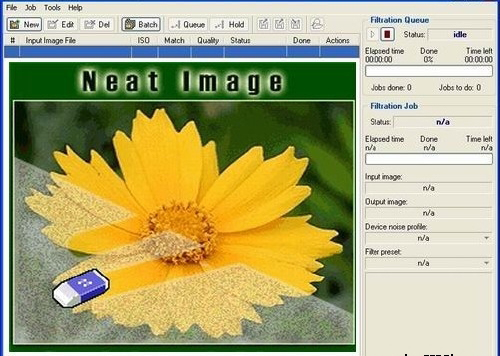
           Neat image plugin for Photoshop all versions. It’s very simple to clean your photos from Noise. Reduce Noise using the Neat image Plugin, and it is very simple to install it just install setup file and choose whatever maybe your Photoshop. The download link is given below:
 Download Here
Neat image plugin for Photoshop all versions. It’s very simple to clean your photos from Noise. Reduce Noise using the Neat image Plugin, and it is very simple to install it just install setup file and choose whatever maybe your Photoshop
To install Neat Image plugin manually
Traditional Method:
            Go to the C:\Program Files\Neat Image\ and Copy the NeatImage.8bf and go to c:\Programfiles\Adobe\ Photoshop (whatever you’re using)\plugins and paste here. Then open your Photoshop and go to filter menu you can find it at last.

Method 2:
                    Open Your Photoshop, go to the Edit menu, and open Preferences >> Plug-ins and Scratch Disks and set Additional Plug-ins Directory to typically, C:\Program Files\Neat Image\. Then open Photoshop and you can find it in filter menu.

Thursday, April 20, 2017

Downlaod Ring Frames for Photoshop

Downlaod Ring Frames for Photoshop

Download this Ring Frames for use for Photoshop designs, This frames used for highlight the matter or any photo with Suitable Ring. This .psd will very useful forever. If you want to download this .psd file click on the given below link 
Download From here
  Rayarakula Karnakar 
   9014819428

Thursday, April 13, 2017

Downlaod Arches for Photoshop

Downlaod Arches for Photoshop

Download this arches for use for Poster designs at the time of any festival or any functions. This .psd will very useful forever. If you want to download this .psd file click on the given below link 
Download From here
   Rayarakula Karnakar 
9014819428

Tuesday, April 4, 2017

Design Your Name with This Style

Design Your Name with This Style
 
Do you want to Design your name like this? Ok I will help to you .

To design this type of style Name using Photoshop any version. But you need to .psd (Photoshop Document) file for easy Making.   So that I am giving the .psd file for you. Just you need to click below link and download .rar file after download you need to extract the .rar file with WinRAR or any extractor. It will open a .psd file open with Photoshop. That’s it 

.psd file link

After edit your name with design do not forgot me upload in Facebook and tag me.


Wednesday, March 22, 2017

Tuesday, March 21, 2017

How To Reset Photoshop To Defaults


Download Photoshop
TO RESET THE PHOTOSHOP:
To restore preferences of Photoshop quickly using a keyboard shortcut Keys:
Step 1: Drag and Drop the Photoshop Icon from the start menu to the Desktop or right click on desktop>> new >> shortcut and give the path to the Photoshop
·         Step 2: Now Press and hold
Windows = Alt + Control + Shift

Mac Os = Option + Command + Shift
While starting the Photoshop. You will find a prompting to reset the Photoshop Settings. just click on OK ..
Note: if You reset the Preferences and Photoshop I will also effect on custom shortcuts, work spaces, and color settings to be reset to default.


Disable and enable warning messages
Sometimes Photoshop occurs some warning messages. And there you have a option to Do not show this. But you want to disable all the warning notification from the settings.
1.         Do any one of the following:
•           (Windows) Choose Edit > Preferences > General.
•           (Mac OS) Choose Photoshop > Preferences > General.
2.         Click Reset All Warning Dialogs, and click OK.

Tuesday, February 28, 2017

How to Make Oil Paint Effect without Graphics Card

How to Make Oil Paint Effect without Graphics Card

                      
                         In the Present photography days, the Photoshop also very popular and now a days the oil painting effects is fully popular in social networks. So, that I created a video(Oil Paint Effect in Photoshop CS5) about oil painting effect in the Photoshop CS5, but some people are suffering with doing this effects who are do not have any graphic memory in their computer. In that movement, I am posting this post to help us whose do not have graphics in their computers.


Here I am presetting a simple and small size filter its helpful for create Oil Painting Effect in the Photoshop 7.0 and later named as GREYCstoration. That means this filter works on lower version of Photoshop also.
You can download the filter of GREYCstoration from the below link.


DownloadHere
Doing In this filter you have to minimum knowledge about Photoshop. How the photo is changing and what enough it. So Now talk about filter. This filter has some form they are look like this image. If you have to learn the changing of some default values. This changes will make a good oil painting effect


You Can find the GrayStoration filter in filter>Noise> GrayStoration


After Applying filter additional Editing (optional)

    1.    Want to do Smooth Then Go to Filter >> Blur >> Surface Blur 
       (adjust by looking the image)
    2.    Sharpness from the Blur Filter >> Sharpen >> Unsharp Mask 
          (adjust by looking the image)
   3.    Take a Colorful Background image and change Blend Mode until which is most suitable for it for color effects


Watch this video to do Oil Painting effect in The Photoshop CS5